 DataLLM Lab
Qwen Image 2.1 Editing Prompts: Product Photos, Text, and Cutouts
These Qwen Image 2.1 editing prompts focus on one job: changing a product photo without accidentally redesigning the product. Start with a single edit, name what must stay fixed, and compare the result with the original before using it in a listing.
Scope: DataLLM Lab has not run Qwen editing tests for this tutorial. Every prompt and repair below is an original, author-written starting point, not a verified model output. There are no first-party before-and-after result images.
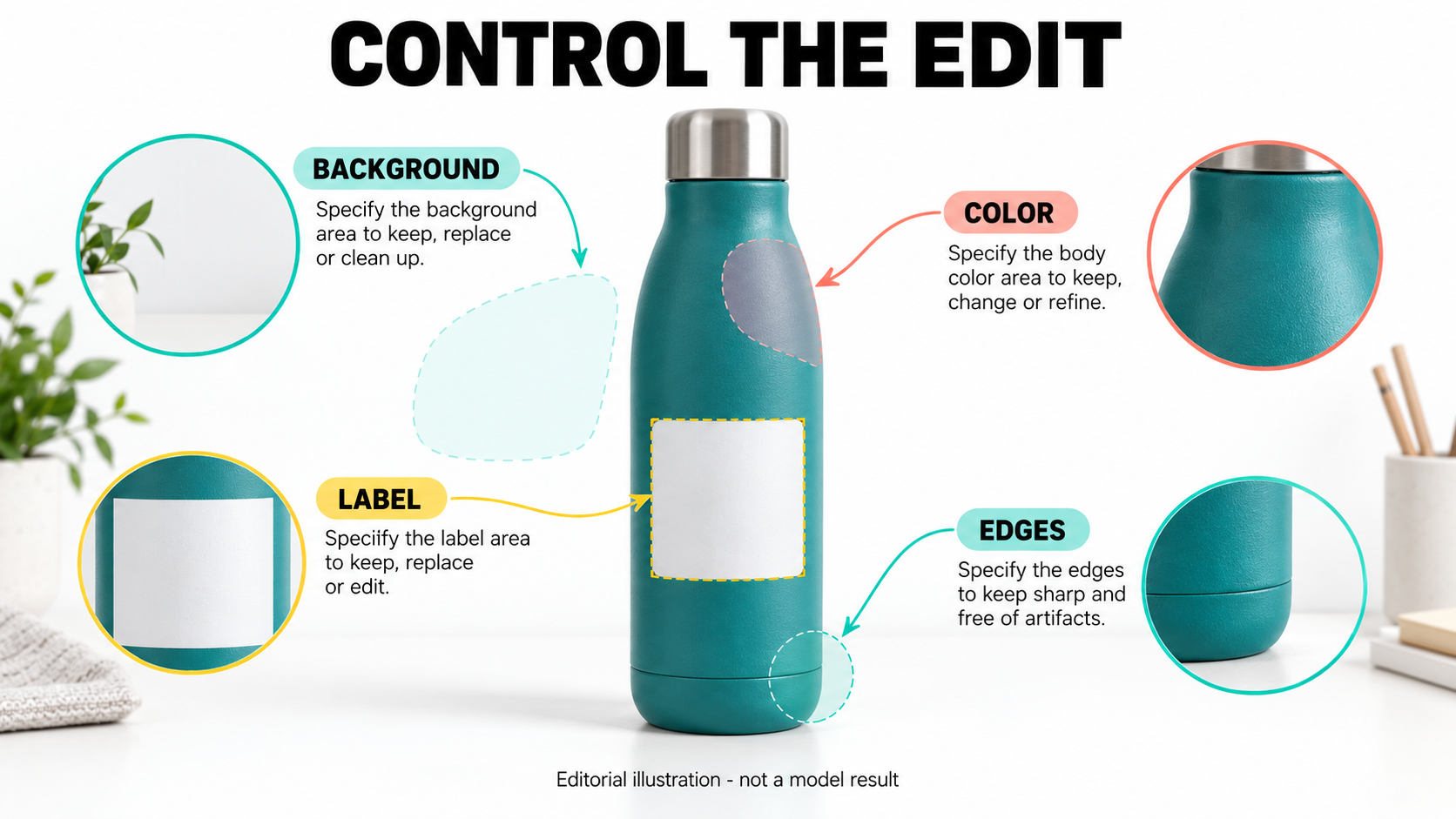
Before you start: verify the model and editing controls
Qwen describes Qwen-Image-2.1 as a unified generation-and-editing model with local editing and transparent output. Its announcement documents circles, painted annotations, or an original image plus a separate mask as selection routes. These are vendor capability statements, not guarantees that untouched details survive. Qwen announcement.
Start from the official repository, which links weights and setup instructions. Verify the actual checkpoint or model ID behind your chosen channel. If a menu says Qwen Image Edit 2.1, check what it runs; a mode label alone does not establish a separate official checkpoint.
Before uploading commercial material, review the applicable license, provider terms, and image-handling policy. Check whether the channel actually exposes image editing, local selection, and RGBA export. This guide does not establish current hosted availability, pricing, or compatibility with your hardware.
- Keep an untouched master photo. Use a clear label and enough resolution to inspect small lettering.
- Upload it as the editing input. For local editing, follow that interface's selection method and mask convention; do not assume white always means editable.
- Paste one prompt below, substituting your real object and approved wording. Keep framing and dimensions unchanged where controls allow.
- Save the result separately. Compare it with the master before attempting another change.
For provider-selection questions, use the AI image API guide as separate reading, not proof that any listed service runs this checkpoint.
Four Qwen Image 2.1 editing prompts for product photos
The examples use a hypothetical stainless-steel bottle with a black cap and a label reading DAILY BOTTLE. Substitute your own product details. Label wording is fictional; colors and variants used in listings must match the real product.
Qwen's editing prompt-rewriter instructions emphasize a specific operation, explicit preservation, and literal text. The prompts below apply that approach without copying Qwen's showcase examples. In a Qwen Image 2.1 prompt, preservation wording expresses the goal; it does not lock pixels.
1. Replace only the background
Use this when the product is already right and only the setting needs changing. Avoid combining a new background with a new angle, brighter metal, and a different label: you would have several changes to diagnose at once.
Replace only the background behind the bottle with a light gray seamless studio backdrop. Keep the original bottle silhouette, black cap, metal finish, front label, all lettering, position, scale, and camera angle unchanged. Keep the existing contact shadow beneath the bottle and the original lighting on the product. Add no props or extra products.Inspect: Compare cap shape, label placement, and bottle width. Check whether the contact shadow still meets the base. A nicer backdrop is not an acceptable result if the logo has changed.
Targeted repair: If the product drifts, retry from the master with a background-only selection, if supported. Add: "Edit the selected background only; retain the product from the original input." Reject persistent logo or geometry changes.
2. Change color inside a local selection
Select only the bottle body, excluding the cap, label, and metal rim. Where the channel supports an original-plus-mask route, keep the mask separate so the source details remain visible. Identify both inputs using that channel's documented method.
Recolor only the selected bottle body to matte forest green. Preserve the body's original contour, dents, seams, and shading. Keep the black cap, exposed metal rim, front label, all lettering, background, and contact shadow unchanged. Retain the original position, scale, and camera angle.Inspect: Look for green spilling onto the cap or label. Compare highlights and seams with the master; a color change should not introduce a new construction or finish you cannot sell.
Targeted repair: If color crosses the boundary, refine the selection around the label and rim and retry from the master. Add: "Recolor the selected body surface only; retain the original label and rim." Treat color matching as unverified until reviewed against the real product.
3. Replace one line of label text
Use the exact source and replacement strings. Select the title line rather than the entire bottle. If your input does not say DAILY BOTTLE, change the prompt before running it.
Replace only the front label title "DAILY BOTTLE" with "TRAIL BOTTLE". Match the original title's letter style, weight, alignment, ink color, and perspective on the curved bottle. Preserve the label border, logo, every other text line, bottle geometry, cap, lighting, and background. Keep the replacement on the original title line.Inspect: Read every character at full resolution, including text you did not ask to change. Look for doubled letters, damaged borders, or a newly invented logo. Then check legibility at the final listing size.
Targeted repair: If lettering is wrong, narrow the selection and simplify the request to that one line. If exact typography or required packaging text still fails inspection, place approved artwork in a conventional editor instead of accepting approximate text.
4. Extract a transparent cutout
Qwen documents extracting a photo subject into a transparent RGBA layer. Whether your channel preserves that alpha channel through download still needs checking. Official transparency description.
Extract only the bottle from the input photograph onto a transparent RGBA background. Preserve its original silhouette, cap, metal rim, label, lettering, colors, and surface detail. Remove the surrounding scene and the cast shadow outside the bottle. Keep the bottle's position and scale. Leave the background transparent, not filled with a color or a drawn checkerboard.Inspect: Check that the downloaded file contains actual transparency. Composite it over both white and dark backgrounds to reveal edge halos, missing cap details, or leftover background pixels. A checkerboard in a preview is not sufficient evidence.
Targeted repair: If a pale fringe remains, request removal of that fringe while retaining the contour, or refine the alpha edge manually. If the channel exports only a flattened image, use an alpha-preserving export path or a separate cutout tool.
Before-and-after QA: decide whether to keep the edit
Compare aligned images at the same scale. This is a proposed acceptance rubric, not a measured Qwen score.
| Check | Accept when | Reject or repair when |
|---|---|---|
| Geometry | Only the requested region or attribute changes | Cap, proportions, seams, or product count differ |
| Branding | Unedited logo and label details match the master | Marks are replaced, softened, or invented |
| Text | Requested wording is exact; other text is intact | Characters, units, punctuation, or line breaks change |
| Edges | Contour is intact on light and dark backgrounds | Halos, clipping, or background residue remain |
| Scope | No unrelated changes are visible | Lighting, color, or framing drifts outside the target |
If any preservation check fails, return to the master rather than repeatedly editing a damaged result. Record the failure and change one variable on the next attempt. For pixel-exact requirements, use a conventional masked composite and verify it directly.
Record enough detail to reproduce the attempt
Save a small record beside each output:
- Date and time, access channel, and displayed model ID or checkpoint version.
- Original input filename, reference order, selection or mask, and input dimensions.
- Exact prompt, plus any rewritten prompt if the channel exposes it.
- Output dimensions and format; seed, steps, guidance, or edit strength when offered. Mark hidden settings as unavailable.
- Number of attempts, actual charge or credit debit, and billing unit; record an unknown charge as unknown.
- QA decision and specific defects, with the accepted output filename if one passes.
A saved seed alone does not establish repeatability across different channels or software versions. Keep the full record and the actual input files.
FAQ
Will preservation instructions guarantee an unchanged logo?
No. They specify your request, not a verified outcome. Compare the logo with the master and reject drift. Use approved artwork or a masked composite when exact brand reproduction is required.
Do editing prompts need <image1> tags?
Not universally. The official rewriter requires tags in multi-image rewritten instructions and natural references for single-image instructions. That is not a rule for every hosted UI. Follow your channel's documentation.
Does a transparent background request guarantee a usable cutout?
No. Confirm actual alpha transparency in the downloaded file, then inspect the contour on contrasting backgrounds. Transparent export and a clean extraction are separate checks.
Conclusion
Useful Qwen Image 2.1 editing prompts define both the change and the details that must survive. Try one operation on a master photo, inspect the export, and keep only results that meet your product requirements. For a different job, creating an image from scratch, see the text-to-image guide.